
Pi-hole: The Ultimate Network-Wide Ad Blocker for Your Home Lab
My smart TV’s ad-riddled interface drove me to set up Pi-hole, a network-level ad blocker on a Raspberry Pi.


TL;DR: My smart TV’s ad-riddled interface drove me to set up Pi-hole, a network-level ad blocker on a Raspberry Pi. It was surprisingly easy and has made my entire home network faster and more private. This post is my journey and a guide to help you do the same, including the dumb mistake I made that you should avoid.
The breaking point for me was the smart TV. I’d spent good money on a decent screen, only to find the main interface plastered with more ads than a Times Square billboard. It felt slow, cluttered, and honestly, a little insulting. My browser’s ad blocker was doing a fine job on my laptop, but it couldn't help me here. It couldn't stop the ads in my mobile games, or the trackers phoning home from a dozen other gadgets. I'd had enough.
That's what finally pushed me to try Pi-hole. I'd heard about it for years in home lab circles—a mythical tool that could block ads across your *entire* network. It sounded complicated, but I was determined. What I found was a project that was not only incredibly effective but also way more accessible than I thought. It’s a DNS sinkhole, which is a fancy way of saying it catches requests to ad-serving domains and just… drops them. The ad never even gets a chance to load. The result is a cleaner, faster, and more private internet experience for everything on your Wi-Fi.
The Gear You’ll Need (It’s Not Much)
You don't need a supercomputer for this. In fact, the beauty of Pi-hole is that it runs perfectly on a tiny Raspberry Pi. I had a Raspberry Pi 4 lying around, which is more than enough power, but an older Pi 3 would work just as well. If you're new to this, here's the shopping list:
- A Raspberry Pi (Model 3B or newer is a good bet)
- A microSD card (16GB is a good size to give it some breathing room)
- A reliable power supply for the Pi
- An Ethernet cable (seriously, don't try to run your DNS server over Wi-Fi, it's just asking for trouble)
I started with a fresh install of Raspberry Pi OS to keep things simple. Once you have the OS installed and can connect to your Pi via the command line (I use SSH), you're ready for the fun part.
The Famous One-Line Install
This is the part that surprised me the most. You literally just run one command in the terminal. That's it.
curl -sSL https://install.pi-hole.net | bashThis kicks off a friendly little setup wizard. It’s pretty self-explanatory, but here are the important bits to watch out for:
- Static IP Address: The wizard will insist you set a static IP for the Pi. Do not skip this. This is the permanent address for your new ad-blocking assistant, and your network needs to know where to find it.
- Upstream DNS: You have to pick an upstream DNS provider (like Cloudflare or Google). This is where all the *non-ad* traffic will go to be resolved.
- The Admin Page: Say yes to installing the web admin interface. It’s your command center for everything Pi-hole.
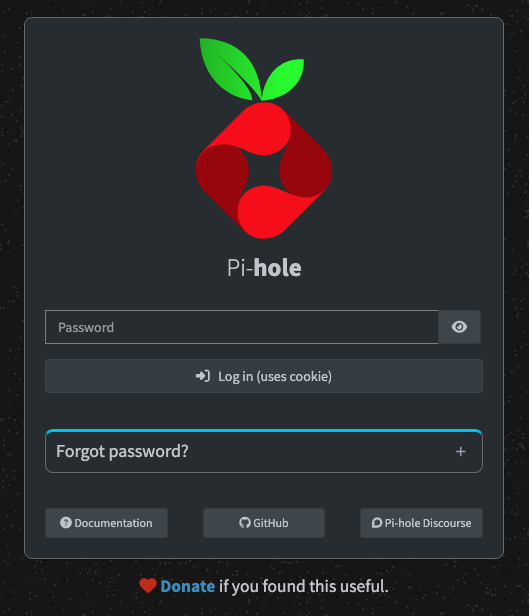
At the end, it will spit out a final screen with your login password. Copy that password into a password manager immediately. Don't be a hero and think you'll remember it.
My Big Dumb Mistake (So You Can Avoid It)
I was so excited to get going that I breezed through the static IP setup. Later, when I was configuring my router, I couldn't get it to work. After 30 minutes of pulling my hair out, I realized I’d typed the Pi-hole’s IP address wrong in my router settings. My entire home network lost internet access, and I had a very annoyed family to answer to. My advice? Triple-check the IP address you set for the Pi-hole and the one you type into your router. It’ll save you a headache (and maybe an argument).
Making it the Boss of Your Network
With Pi-hole running, you need to tell your router to use it. This is the step that puts Pi-hole in charge of all DNS requests on your network.
Log in to your router’s admin page and find the DHCP/DNS settings. You’re looking for the spot where you can set a custom DNS server. Change the primary DNS to the static IP of your Pi-hole that you *definitely* wrote down and triple-checked. Save the settings, and then give your router a good old reboot.
Once it's back online, every device that connects to your network will start sending its DNS queries through the Pi-hole first. And that’s it. No need to install anything on your phone, your TV, or your laptop. It just works.
Peeking Under the Hood: The Dashboard
This is the fun part. Navigate to `http:///admin` and log in. You'll be greeted with a dashboard full of glorious stats. Seeing that "Percent Blocked" number climb is surprisingly satisfying. It's a tangible measure of all the junk you're no longer downloading.
The dashboard is also your main tool for managing things. If a website you need is broken because it's overzealously blocking something, you can hop into the Query Log, find the blocked domain, and whitelist it with a single click. It's a great way to see just how chatty your devices are and what weird domains they're trying to contact.
Is It Worth the Hassle?
One hundred percent, yes. It's one of the few home lab projects with a clear, immediate, and noticeable benefit for everyone in the house. The internet feels faster, web pages are cleaner, and there’s a quiet satisfaction in knowing you've taken back a little bit of control over your own network.
If you have a spare Raspberry Pi, this is one of the best things you can do with it. Give it a shot, and let me know how it goes. What's the first ad-riddled app you're hoping it will fix?